
Midjourney is an AI-powered image generation platform that can help users create artwork and visual concepts from text prompts. It can be useful for creating images for creative projects, social media content, blog visuals, thumbnails, and other design-related work.
If you are new to AI image generation, understanding how Midjourney works and how to write clear prompts can make it easier to experiment with different types of images.
In this guide, you will learn step by step:
- What is Midjourney AI?
- How to use Midjourney
- How to write effective prompts
- Midjourney prompt examples
- Midjourney pricing
- Important features and limitations
- Tips for beginners
This guide is written in simple language so that beginners can understand the basic workflow and start experimenting with Midjourney more confidently.
How to Use Midjourney AI
AI image generation has made it easier for users to experiment with digital artwork and visual concepts using text prompts. Instead of creating every visual element manually, users can describe the type of image they want and use an AI image generator to create a starting point.
Midjourney is one platform that can be used for this type of AI image generation. Depending on the user’s prompt and available features, it can help create different styles of artwork and visual concepts.
Midjourney can be useful for:
- YouTubers
- Bloggers
- Graphic designers
- Content creators
- Digital marketers
- Business owners
- Students
For example, creators can use Midjourney to explore ideas for thumbnails, blog visuals, social media graphics, illustrations, and other creative projects.
However, getting the desired result may require experimenting with different prompts and making multiple adjustments.
Many beginners have questions such as:
- What is Midjourney AI?
- How does Midjourney work?
- How can you create AI images?
- Is Midjourney suitable for beginners?
- How do you write effective prompts?
In this complete guide, you will learn how to use Midjourney step by step, understand its basic features, write more effective prompts, and explore practical examples in simple English.
How to Use Midjourney AI for Beginners — Best Prompt Examples
What Is Midjourney AI?
Understanding Midjourney in Simple Terms
Midjourney is an AI image generation platform that allows users to create visual content from text prompts. You describe the image you want to create, and Midjourney generates images based on your instructions.
For example, you can enter prompts such as:
“A futuristic city at sunset”
“A highly realistic warrior standing in the rain”
“A cinematic astronaut walking on Mars”
The generated result can vary depending on the prompt, settings, and current Midjourney features. You may also need to adjust your prompt or generate multiple versions to achieve the result you want.
Midjourney can be useful for creating different types of visual concepts, including:
- Digital artwork
- Blog images
- YouTube thumbnail concepts
- Social media visuals
- Illustrations
- Creative scenes
Unlike traditional image-editing software, Midjourney uses text prompts as an important part of the image-generation process. This makes it possible for beginners to start experimenting with AI-generated visuals without first learning advanced image-editing techniques.
However, understanding prompt writing and learning how to refine your instructions can help you get more useful results.
Why Did Midjourney AI Become Popular?
Midjourney has attracted attention from creators because of its focus on AI-generated images and its ability to produce different artistic and visual styles from text prompts.
Some aspects that can contribute to its appeal include:
- Cinematic visual styles
- Artistic image generation
- Detailed visual results
- Realistic lighting and textures
- A wide range of creative possibilities
- Text-prompt-based image creation
The final result can vary depending on the prompt, settings, and the type of image being created. Users may also need to experiment with different prompts to achieve the desired visual style.
For creators, Midjourney can be useful when they need to quickly explore visual concepts for projects such as blog images, social media content, thumbnails, illustrations, and creative artwork.
Rather than choosing an AI image generator based only on popularity or visual examples, users should consider whether its features, workflow, pricing, and output style match their specific requirements.
What Can You Use Midjourney AI For?
Midjourney can be used to create a wide range of AI-generated visual concepts from text prompts. The type of result depends on the prompt, settings, and the creative requirements of the project.
For example, you can use a prompt such as:
“Realistic mountain sunset, cinematic lighting”
Based on the prompt, Midjourney can generate visual concepts related to the described scene.
Common Midjourney Use Cases
Midjourney can be useful for:
- YouTube thumbnail concepts
- Blog and website visuals
- Social media graphics
- Digital artwork
- Illustrations
- Creative concepts
- Poster and marketing visual ideas
- Brand and logo concept exploration
For professional or commercial projects, generated images should be reviewed and edited as needed. Users should also check the platform’s current terms and any applicable rights or licensing requirements before using AI-generated visuals commercially.
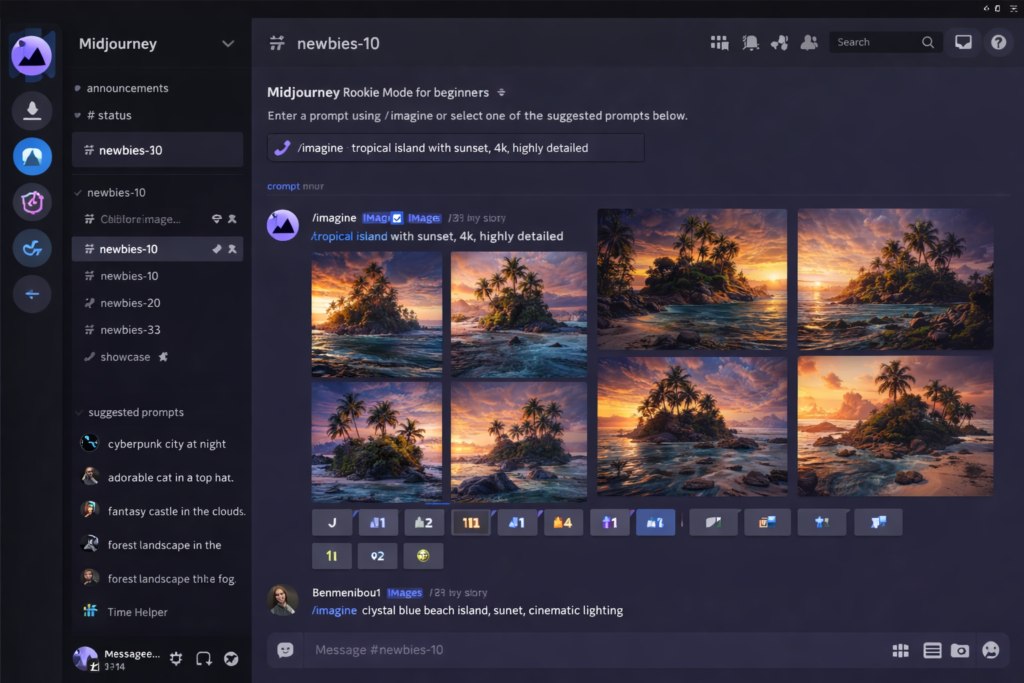
How to Use Midjourney AI (Step-by-Step Guide)
Now, let’s learn how to get started with Midjourney and create your first AI-generated image.
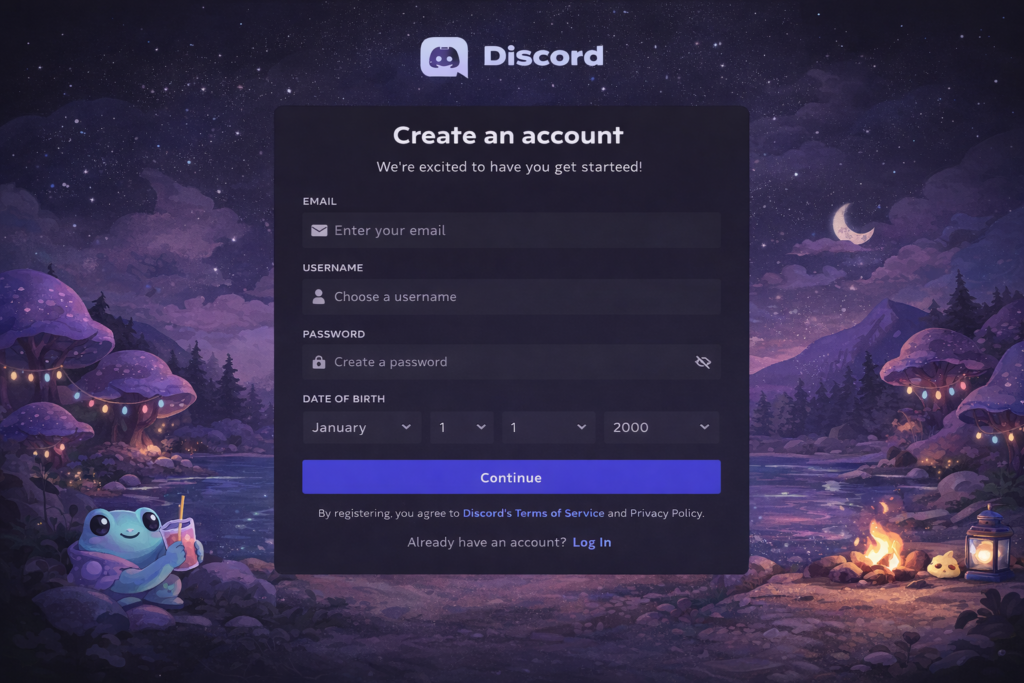
Step 1 — Create or Log In to Your Account
Start by visiting the Midjourney website and creating an account or logging in if you already have one.
If your selected Midjourney workflow requires Discord, you may also need a Discord account.
To create a Discord account:
- Visit Discord
- Create an account
- Verify your account if required
- Log in to your account
Once you have completed the account setup, you can continue to the next step and access the available Midjourney tools and image-generation features.
Note: Midjourney’s interface and account setup process can change over time. If you see different options from those described in older tutorials, follow the current instructions displayed on the official Midjourney website.
Step 2 — Access Midjourney
After creating or logging in to your account, open the Midjourney platform and access the available image-generation features.
Depending on the current Midjourney interface and account setup, you may see different options for accessing the image-generation workspace.
If your account provides access through Discord, follow the instructions shown by Midjourney to connect or open the relevant Discord experience.
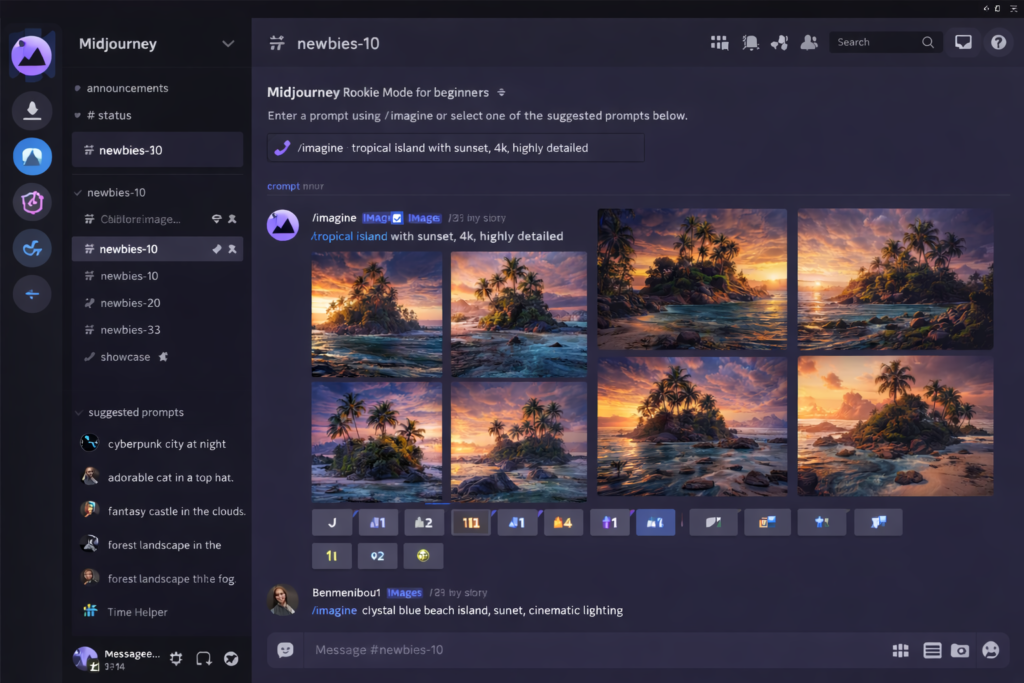
Step 3 — Open the Image Generation Workspace
Once you have access to Midjourney, open the available image-generation workspace.
The exact interface may vary depending on the current Midjourney platform, account type, and available features.
Look for the option that allows you to enter a text prompt and generate an image.
Note: Older Midjourney tutorials may refer to options such as “Join Beta” or specific “Newbies” Discord channels. These instructions may no longer match the current interface, so always follow the latest workflow displayed by Midjourney.
Step 4 — Write Your Prompt
Once you are inside the image-generation workspace, enter a clear description of the image you want to create.
For example:
Futuristic city at sunset, cinematic lighting
If your current Midjourney interface supports the /imagine command, you can enter the prompt using that command:
/imagine futuristic city at sunset, cinematic lighting
Submit the prompt and wait for Midjourney to process the request.
The generated result will be based on the details included in your prompt. You can experiment with different descriptions and settings to achieve the visual style you want.
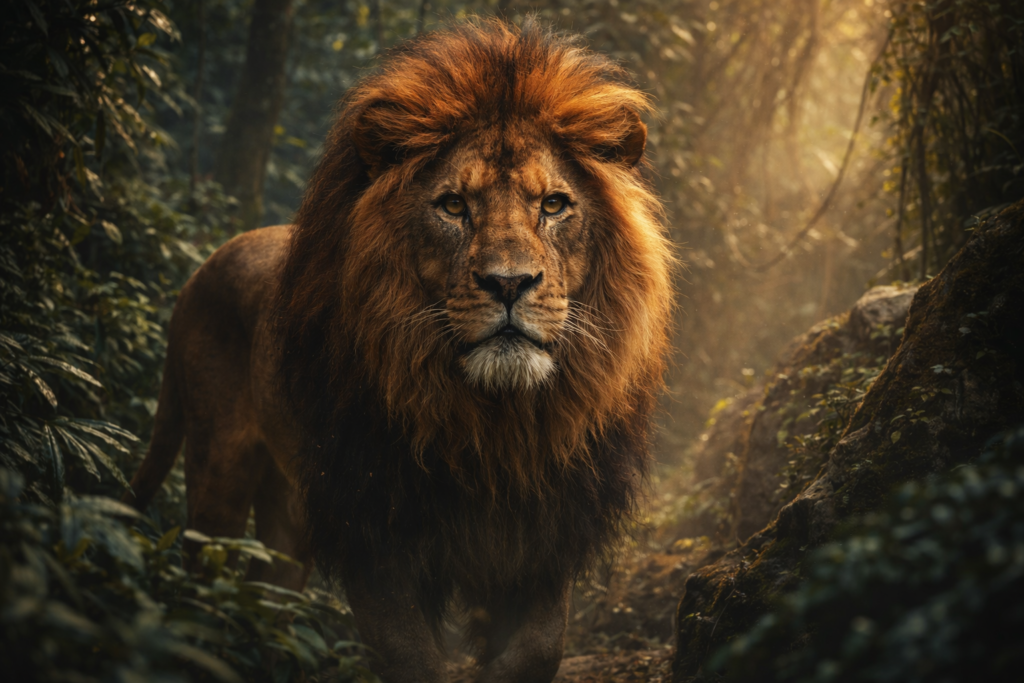
Example 1 — Realistic Lion
Prompt:
Realistic lion in a jungle, cinematic lighting
Result:
An AI-generated visual of a realistic lion in a jungle setting.
For better results, you can add more details such as the subject, environment, lighting, composition, and desired visual style.
Note: Midjourney’s commands and interface may change over time. Follow the options currently available in your Midjourney account rather than relying solely on older tutorials.
Beginner-Friendly Midjourney Prompt Examples
If you are new to Midjourney, start with simple prompts and gradually add details such as style, lighting, environment, and composition.
Here are some beginner-friendly examples:
- Realistic Mountain Landscape Realistic mountain landscape at sunrise, cinematic lighting, highly detailed
- Futuristic Cyberpunk City Futuristic city with neon lights, cyberpunk style, rainy streets, cinematic atmosphere
- Realistic Portrait Realistic portrait photography, natural lighting, detailed facial features, shallow depth of field
- Fantasy Castle Fantasy castle surrounded by clouds at sunset, cinematic lighting, detailed environment
Tip for Beginners
Start with the basic subject and then add relevant details such as:
- Subject: What should appear?
- Style: Realistic, cinematic, anime, 3D, etc.
- Environment: Where is the scene?
- Lighting: Soft, studio, golden hour, dramatic, etc.
- Details: Important visual elements you want to include.
A more descriptive prompt can give you greater control over the type of image you want to generate, although results can still vary.
Midjourney Commands
Midjourney has supported different commands and tools for creating and working with images. Some commonly referenced commands include:
/imagine— Used to create an image from a text prompt where this command is supported./describe— Can be used to generate text descriptions or prompt ideas from an uploaded image where available./blend— Allows users to combine multiple images into a new visual where the feature is available.
Note: Midjourney’s commands and interface may change over time. Some commands or features may work differently depending on the current platform and account. Always check the latest Midjourney documentation before following an older command-based tutorial.
Midjourney Features
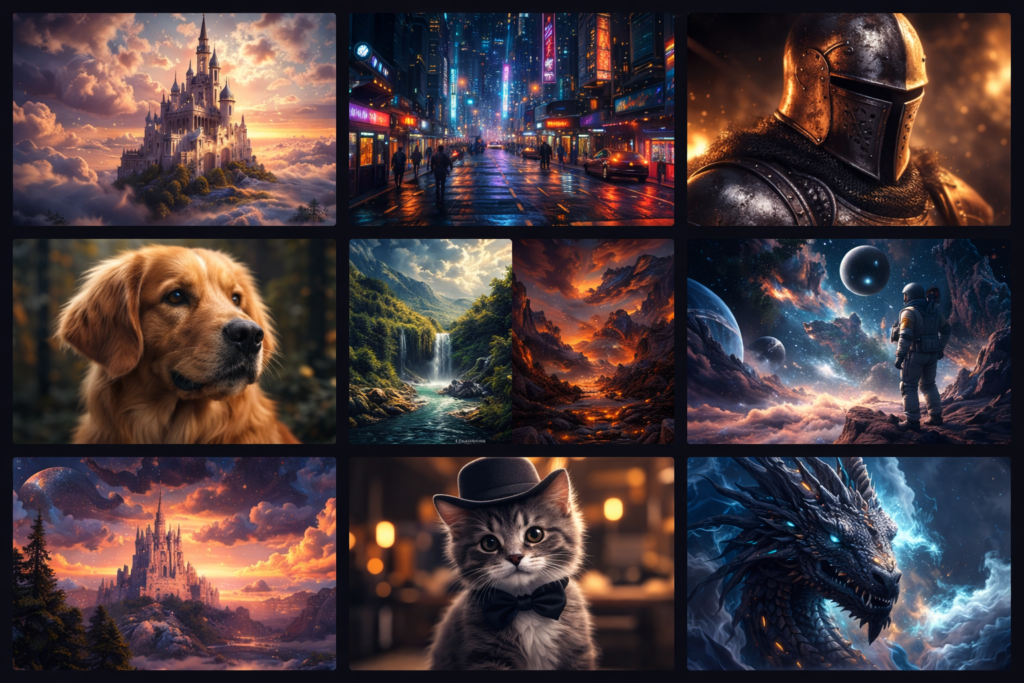
Midjourney provides a range of features for AI-powered image generation and creative visual work. Some notable features include:
- Detailed Image Generation — Creates images with different levels of visual detail based on the prompt and selected options.
- AI Image Generation — Generates visual content from text descriptions.
- Multiple Visual Styles — Allows users to explore different artistic and visual styles.
- Creative Image Exploration — Useful for experimenting with characters, environments, concepts, illustrations, and other visual ideas.
- Prompt-Based Creation — Users can describe the desired image using text and refine their instructions to explore different results.
The available features and image-generation options may change as Midjourney updates its platform.
Midjourney Pricing
Midjourney’s pricing and available plans can change over time. Before subscribing, check the current plans, features, credits, and usage limits on the official Midjourney website.
Depending on the current pricing structure, Midjourney may offer different subscription options designed for users with different levels of usage.
Before choosing a plan, consider:
- Monthly or annual cost
- Image-generation limits
- Available features
- Usage or GPU time
- Commercial-use requirements
- Whether the plan matches your actual workflow
For beginners, starting with the lowest suitable plan can be a practical approach if it provides enough access for your needs.
Pros and Cons of Midjourney
Pros:
- Supports detailed AI image generation
- Offers multiple visual and artistic styles
- Useful for creative image concepts
- Can be used for thumbnails, illustrations, and other visual projects
- Allows users to experiment with text-based prompts
Cons:
- Pricing may not suit every user
- Some features or usage levels may require a paid plan
- Beginners may need time to learn effective prompting
- Generated results may require multiple attempts
- Features and pricing can change over time
Note: Always check Midjourney’s current official pricing and plan information before purchasing a subscription.
Tips for Beginners
If you are new to Midjourney, start with a clear and descriptive prompt instead of using only one or two words.
For example:
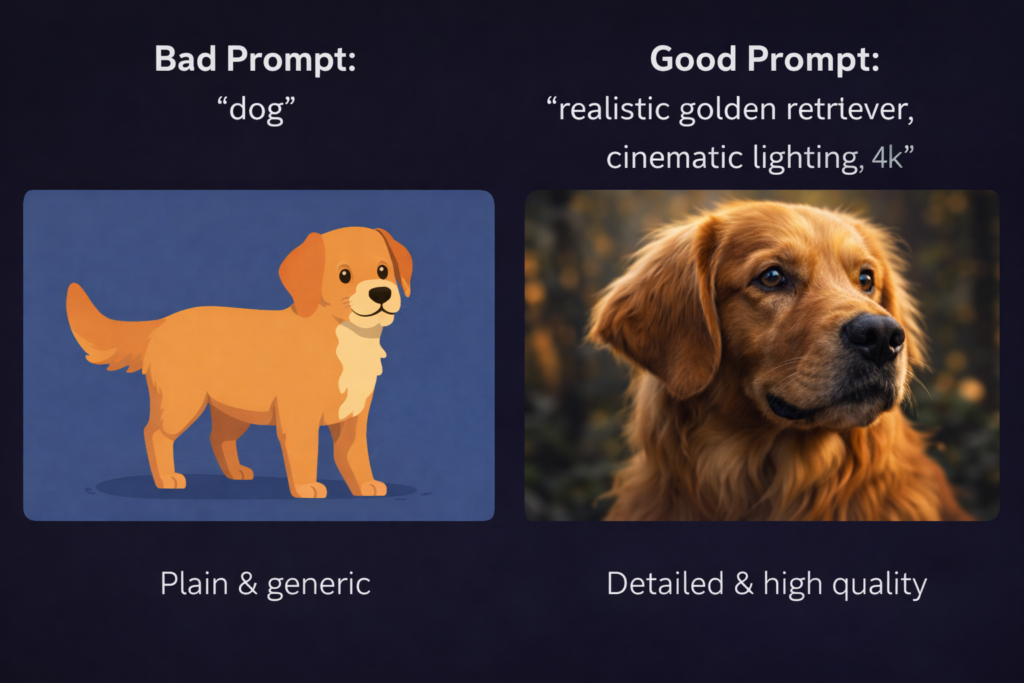
Bad Prompt:
dog
This tells Midjourney only the basic subject and provides very little information about the desired visual.
Better Prompt:
Realistic golden retriever sitting in a green park, cinematic lighting, detailed photography
This prompt provides additional information about the subject, environment, and visual style.
A Simple Prompt Formula
You can structure a basic Midjourney prompt like this:
Subject + Environment + Style + Lighting + Details
For example:
Realistic golden retriever in a beautiful green park, cinematic lighting, detailed photography, shallow depth of field
You do not need to add every possible keyword to every prompt. Add details that are relevant to the image you actually want to create.
Midjourney Use Cases
Midjourney can be used for different types of visual content and creative projects. Some common use cases include:
- YouTube Thumbnails — Create visual concepts and backgrounds that can be further edited into thumbnails.
- Blog Images — Generate illustrations and visual concepts related to blog topics.
- Social Media Content — Create artwork, backgrounds, and visual ideas for social media posts.
- Logo Concepts — Explore different visual ideas for branding and logo concepts before refining them with design software.
- Digital Artwork — Create creative illustrations, characters, environments, and artistic scenes.
- Marketing Visuals — Develop concepts for promotional graphics and campaign visuals.
For professional or commercial use, review the generated content and check Midjourney’s current terms and applicable usage rights before using an image in a final project.
How to Write Effective Prompts for Midjourney AI — Beginner Guide
Writing clear prompts is an important part of getting useful results from Midjourney. A well-structured prompt can give the AI more information about the subject, visual style, lighting, and other details you want to include.
However, a more detailed prompt does not always guarantee a better image. The result can vary depending on the prompt, settings, and the type of image you want to create.
Basic Prompt Structure
A simple prompt can follow this structure:
Subject + Style + Lighting + Quality + Details
For example:
Basic Prompt:
lion
This tells Midjourney the main subject, but provides very little information about the desired result.
Detailed Prompt:
Realistic lion wearing a golden crown, cinematic lighting, highly detailed, dramatic atmosphere
The second prompt provides additional information about the subject and visual direction, giving Midjourney more context to work with.
Simple Rule
Clearer Prompt = More Specific Instructions
Instead of adding random keywords, focus on describing the visual result you actually want.
For example, you can specify:
- Subject — What should appear in the image?
- Style — Realistic, cinematic, illustration, 3D, etc.
- Lighting — Soft, studio, golden hour, dramatic, etc.
- Environment — Where is the subject?
- Details — Important elements that should appear in the scene.
With practice, you can experiment with different prompt structures and learn which instructions produce results that match your creative requirements.
5 Effective Prompt Writing Rules for Midjourney
1. Write the Subject Clearly
Start by clearly describing the main subject you want to generate.
Basic Prompt:
city
This gives Midjourney only a general idea.
Better Prompt:
Futuristic cyberpunk city with neon lights
The second prompt provides more information about the subject and its visual setting.
2. Add a Visual Style
You can specify the type of visual style you want to explore.
For example:
- Realistic
- Cartoon
- Anime
- Cinematic
- 3D
- Illustration
Example:
Realistic futuristic city with neon lights, cinematic atmosphere
Adding a style can help communicate the visual direction you want, although the final result can vary depending on the prompt and available Midjourney features.
3. Add Lighting
Lighting prompt ka important part ho sakti hai, especially jab aap image ke mood, atmosphere, ya visual appearance ko define karna chahte hain.
You can experiment with lighting terms such as:
- Cinematic lighting
- Soft lighting
- Golden hour
- Dramatic lighting
- Studio lighting
- Natural lighting
Example:
Golden hour mountain landscape, cinematic lighting
Aap lighting ko subject aur environment ke saath combine karke different visual effects explore kar sakte hain. Final result prompt aur available generation settings ke according vary ho sakta hai.
4. Add Relevant Quality and Detail Descriptions
You can include words that describe the level of detail or visual appearance you want in the generated image.
For example:
- Ultra realistic
- Highly detailed
- Detailed textures
- Photorealistic
- Sharp details
Terms such as 4K or 8K can also be included when they are relevant to the visual description, but they do not guarantee a specific resolution or automatically make every generated image better.
Example:
Ultra realistic lion portrait, highly detailed, detailed fur texture
5. Add Relevant Details
Adding useful details can give Midjourney more context about the image you want to create.
For example, instead of writing:
Luxury sports car
You can provide additional information:
Luxury sports car at sunset, cinematic lighting, detailed reflections, realistic photography
You can describe elements such as:
- Environment
- Time of day
- Lighting
- Camera perspective
- Materials and textures
- Mood or atmosphere
- Important objects
The goal is to provide relevant information, rather than simply adding as many keywords as possible.
Midjourney Prompt Examples for Beginners
Here are some practical Midjourney prompt examples that combine a clear subject with style, environment, lighting, and other visual details.
Example 1 — Futuristic Cyberpunk City
Prompt:
Futuristic cyberpunk city with neon lights, rainy streets, cinematic atmosphere, realistic details
Use Case:
Useful for technology blogs, website visuals, social media graphics, and creative artwork.
Example 2 — YouTube Thumbnail Concept
Prompt:
Professional YouTube thumbnail about AI technology, futuristic digital background, cinematic lighting, bold visual composition
Use Case:
Useful as a starting point for YouTube thumbnail designs. You can add the final text and branding separately using a design tool.
Example 3 — Mountain Landscape
Prompt:
Realistic mountain landscape at sunset, golden hour lighting, cinematic atmosphere, detailed natural environment
Use Case:
Useful for blog images, wallpapers, social media visuals, and landscape artwork.
Tip
These prompts are starting points rather than fixed formulas. You can modify the subject, environment, lighting, style, and other details depending on the image you want to create.
Beginner Midjourney Prompt Template
If you are new to Midjourney, you can use a simple prompt structure and customize it according to your subject.
Copy-Paste Template:
Realistic [subject], [style], [lighting], [environment], [important details]
Example:
Realistic lion in a natural jungle environment, cinematic style, soft lighting, detailed fur texture
You can replace the words inside the brackets with details that match the image you want to create.
For example:
- [subject] — lion, car, building, person
- [style] — realistic, cinematic, anime, 3D
- [lighting] — soft lighting, golden hour, studio lighting
- [environment] — jungle, city, mountains, studio
- [important details] — clothing, textures, atmosphere, composition
The goal is to provide clear and relevant instructions rather than simply adding a large number of keywords.
Advanced Midjourney Prompt Example
Once you understand the basic prompt structure, you can combine multiple elements to provide more context about the image you want to create.
Example Prompt:
Professional photographer portrait, soft studio lighting, realistic skin texture, shallow depth of field, detailed photography
This prompt describes the subject, lighting, visual appearance, and depth of field, giving Midjourney more information about the desired result.
Common Midjourney Prompt Mistakes
Beginners may sometimes provide too little information or include details that do not clearly communicate what they want.
Common issues include:
- Using overly vague descriptions
- Not specifying important visual details
- Adding unrelated keywords
- Giving conflicting instructions
- Adding unnecessary keywords simply to make the prompt longer
Instead of trying to make every prompt extremely long, focus on providing clear and relevant information.
Useful Prompt Elements
Depending on the image, you can include:
- Subject
- Style
- Environment
- Lighting
- Composition
- Camera perspective
- Relevant visual details
You do not need to include every element in every prompt.
Useful Midjourney Prompt Keywords
You can experiment with descriptive terms such as:
- Realistic
- Cinematic
- Highly detailed
- Photorealistic
- Professional photography
- Studio lighting
- Golden hour
- Soft lighting
- Dramatic lighting
- Shallow depth of field
Use only the keywords that are relevant to the visual result you want.
Pro Tip: Combine Relevant Details
Instead of using a single-word prompt, try combining the subject with its environment, lighting, and visual style.
Example:
Luxury futuristic sports car on a city street at night, neon lights, cinematic lighting, realistic reflections, detailed photography
This gives the image generator more context about the scene and the visual direction you want.
The result can still vary depending on the prompt, settings, model, and current Midjourney features, so experimenting with different versions is a useful part of the process.
Midjourney Prompt Examples
Example 1 — Realistic Lion
Prompt:
Realistic lion wearing a golden crown, cinematic lighting, detailed fur, dramatic atmosphere, realistic photography
Use Case:
Blog images, thumbnails, creative artwork
Example 2 — Futuristic City
Prompt:
Futuristic cyberpunk city with neon lights, rainy streets, cinematic lighting, detailed architecture, atmospheric environment
Use Case:
Website banners, technology blogs, social media visuals
Example 3 — YouTube Thumbnail
Prompt:
YouTube thumbnail concept about AI technology, futuristic digital background, cinematic lighting, strong visual composition, modern technology theme
Use Case:
YouTube thumbnail concepts and social media graphics
Example 4 — Fantasy Artwork
Prompt:
Fantasy warrior standing on a mountain, dramatic sky, cinematic lighting, detailed environment, epic fantasy atmosphere
Use Case:
Artwork, posters, creative projects
Example 5 — Product Image
Prompt:
Luxury smartwatch product photography, clean studio setup, soft studio lighting, realistic reflections, detailed product design
Use Case:
Product presentations, website visuals, marketing concepts, and affiliate content
Tip
These prompts are starting points. You can modify the subject, environment, lighting, composition, and style according to your project.
For commercial use, always review Midjourney’s current terms and applicable usage rights before using generated images in a final project.
Pro Tips for Better Midjourney Results
When writing Midjourney prompts, use descriptive words that are relevant to the image you want to create.
Some useful terms to experiment with include:
- Cinematic lighting
- Highly detailed
- Photorealistic
- Professional photography
- Studio lighting
- Golden hour
- Dramatic lighting
You do not need to use all of these keywords in every prompt. Choose words that match the visual style, subject, and environment you want.
Common Midjourney Prompt Mistakes
A very short prompt may give Midjourney less information about the image you want to create.
Basic Prompt ❌
car
This only identifies the main subject.
More Detailed Prompt ✅
Luxury sports car at sunset, cinematic lighting, realistic reflections, detailed photography
The second prompt provides additional information about the subject, environment, lighting, and visual appearance.
However, longer prompts are not automatically better. Focus on clear and relevant details rather than adding unnecessary keywords.
How to Write Better Midjourney Prompts
The quality and relevance of a Midjourney result can depend on the instructions you provide in the prompt. A clear prompt gives the image generator more information about the subject and visual direction you want.
For example, a simple prompt such as:
car
provides only basic information about the subject.
A more descriptive prompt can provide additional context:
Luxury sports car at sunset, cinematic lighting, realistic reflections, detailed photography
This prompt describes the subject, environment, lighting, and visual appearance, giving Midjourney more information to work with.
However, longer prompts are not automatically better. The most useful approach is to include clear, relevant, and specific details that match the image you want to create.
The Formula for an Effective Midjourney Prompt
A structured prompt can help you give Midjourney clearer instructions about the image you want to create. You can combine different elements depending on the type of visual you need.
Simple Prompt Formula:
Subject + Style + Lighting + Camera + Details
Example:
A realistic medieval warrior standing in the rain, cinematic style, dramatic lighting, shallow depth of field, detailed armor and environment
This structure gives Midjourney information about the subject, visual style, lighting, camera effect, and additional details.
You do not need to include every element in every prompt. Use the details that are relevant to the image you want to generate, and experiment with different combinations to refine the result.
Midjourney Features and Benefits
Midjourney provides AI-powered image generation features that can be useful for different creative projects. The actual results can vary depending on the prompt, settings, and type of image being created.
1. Detailed AI Image Generation
Midjourney can generate images with different visual styles, details, lighting, and compositions based on text prompts.
Users can experiment with realistic, cinematic, artistic, and other visual approaches depending on their requirements.
2. Accessible Workflow for Beginners
Midjourney allows users to create images using text prompts, which can make AI image generation accessible to people who may not have advanced graphic-design skills.
However, beginners may need some practice to understand prompting and refine their results.
3. Image Generation
Users can generate images by providing text instructions. Generation time can vary depending on factors such as the current platform, settings, and system availability.
4. Wide Range of Creative Possibilities
Midjourney can be used to explore many different types of visual concepts, including:
- Fictional worlds
- Characters
- Creative scenes
- YouTube thumbnail concepts
- Product concepts
- Illustrations
- Digital artwork
The results can then be reviewed and refined according to the requirements of the project.
5. Can Save Time on Certain Creative Tasks
Midjourney can help creators generate visual concepts without creating every element manually from the beginning.
For example, users can create initial concepts for:
- Blog images
- YouTube thumbnails
- Social media graphics
- Illustrations
- Product concepts
This may reduce the time required for certain early-stage creative tasks. However, professional projects may still require additional design, editing, branding, or review.
AI image generation should be viewed as a creative assistance tool rather than a guaranteed replacement for professional designers.
Midjourney vs Other AI Image Tools
Different AI image platforms offer different features and workflows. Instead of declaring one tool universally better than another, compare them based on the factors that matter for your specific project.
| Feature | Midjourney | DALL·E | Leonardo AI | Canva AI |
|---|---|---|---|---|
| Image Generation | Yes | Yes | Yes | Yes |
| Creative Styles | Multiple styles | Multiple styles | Multiple styles | Multiple styles |
| Realistic Images | Available | Available | Available | Available |
| Artistic Images | Available | Available | Available | Available |
| Beginner Friendly | Requires some learning | Generally accessible | Generally accessible | Beginner-friendly |
| Customization | Multiple options | Available options | Multiple options | Design-focused options |
| Best For | Creative image generation | AI-assisted image creation | Creative and design workflows | Graphic design and visual content |
Note: Features, models, image quality, pricing, and availability can change over time. The comparison above is intended as a general overview rather than a fixed performance ranking.
Conclusion
Midjourney AI can be a useful tool for beginners who want to explore AI-powered image generation and creative visual projects.
If you are a content creator, blogger, YouTuber, or designer, you can use Midjourney to create ideas and visual assets for thumbnails, blog images, social media content, illustrations, and other creative projects.
However, getting useful results depends on writing clear prompts, experimenting with different instructions, and reviewing the generated images before using them in a final project.
For beginners, the best approach is to start with simple prompts, learn how different prompt elements affect the output, and gradually experiment with more detailed instructions.
FAQ
Is Midjourney Free?
Midjourney’s pricing and free-access options can change over time. Before using or subscribing to the platform, check the latest plan and access information on the official Midjourney website.
How to Use Midjourney?
To use Midjourney, create or log in to your account, open the available image-generation workspace, enter a text prompt, and generate your image.
Older tutorials may show a Discord-based workflow, but the current interface and available options can change.
What Are the Best Prompts for Midjourney?
There is no single prompt that guarantees the best result. However, clear and relevant prompts can give Midjourney more information about the image you want to create.
You can include details such as:
- Subject
- Style
- Lighting
- Environment
- Composition
- Visual details
Experimenting with different prompts can help you understand which instructions work best for your specific project.